Meta Ads Setup
Connect your Meta Ads account.
Create a Meta Business app, set up a system user, and generate a long-lived token so getFreddy can read and manage your ad campaigns.
Works For
Your own business portfolio and ad accounts.
A server-side integration using a long-lived token.
Standard access with ads_read and ads_management.
Important
If you are trying to manage client ad accounts on behalf of other businesses, this is not the right flow. Meta expects OAuth and different access approval for that case.
Step 1
Create a Meta Business app
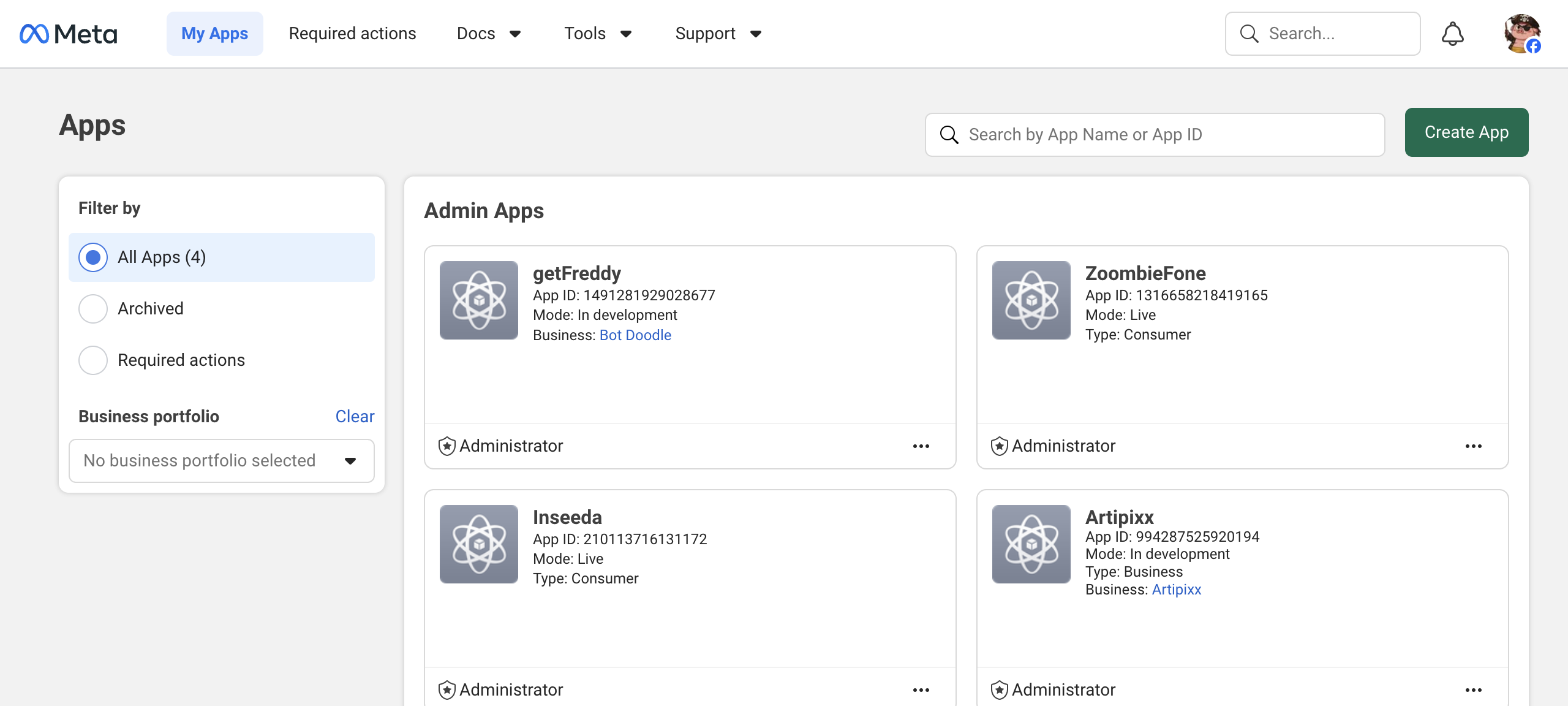
Open developers.facebook.com/apps, then click Create App.
When Meta asks what kind of app you want to create, choose Business. Do not choose Consumer.
The Create App button is in the top-right corner of the page. Use the screenshot below if you are not sure where to click.
Step 2
Confirm this setup is the right one for you
Open Meta's authorization guide: developers.facebook.com/docs/marketing-api/get-started/authorization
Use this guide only if you are connecting your own business portfolio and your own ad account.
For that case, Meta says ads_read and ads_management under standard access are enough. You do not need App Review for this setup.
If you want to access other businesses' ad accounts, stop here and use a different Meta flow.
Step 3
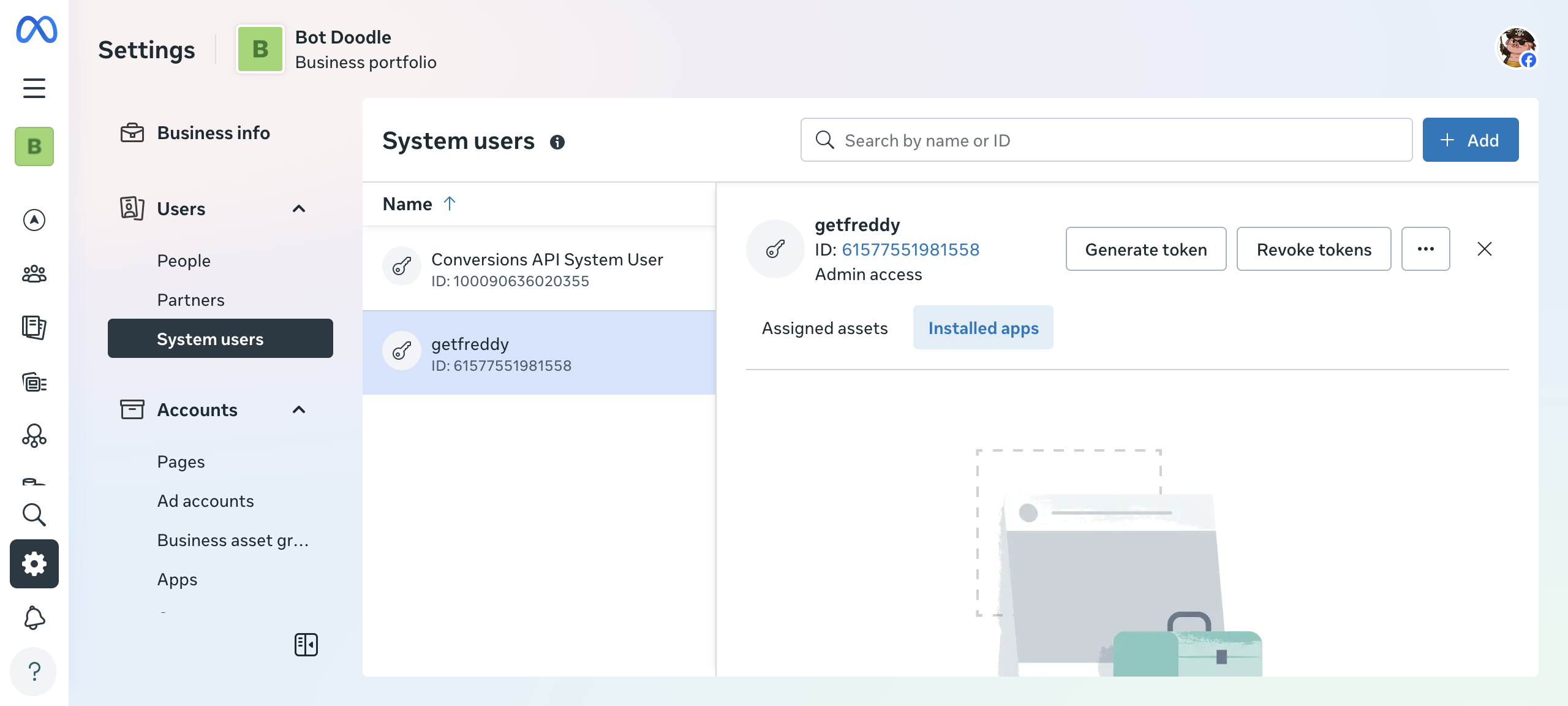
Open Business Settings and go to System users
Open business.facebook.com/latest/settings/system_users.
In Business Settings, go to Users and then click System users in the left sidebar.
A system user is a Meta identity that holds the access token — it keeps things separate from your personal Facebook account.
Step 4
Create an admin system user
On the System users page, click Add.
Name the user something clear like getFreddy Ads, then choose the Admin role.
The button is in the top-right area of the screen, above the user list.
Step 5
Assign the ad account assets this system user should access
Open business.facebook.com/latest/settings/ad_accounts, then select the system user you just created.
Add the ad account you want to connect. In Meta's permissions model, the useful tasks areMANAGE, ADVERTISE, and ANALYZE.
Depending on Meta's current UI, this may appear as Full control or as a list of tasks to check manually.
Step 6
Install the app for that system user
Open Meta's install-and-token guide if you want the official reference: developers.facebook.com/docs/business-management-apis/system-users/install-apps-and-generate-tokens
In the selected system user panel, open the Installed apps tab and make sure your Business app is installed for that user.
If you do not see your app there yet, install it before moving on. Do not generate the token until this is done.
Step 7
Generate the token with the right scopes
Go back to business.facebook.com/latest/settings/system_users, select your system user, then click Generate token.
Choose your Business app, then enable ads_read and ads_management.
Copy the token immediately — Meta only shows it once.
Step 8
Paste the token into getFreddy
Open remix.getfreddy.app/app/connections.
Go to Connections, open the Meta Ads card, and paste the token.
Save the connection. If Meta accepted the token and the app has ad-account access, your setup is complete.
Official References
Quick Reminder
This does not use your personal Facebook login.
You are creating a system-user token attached to a Business app with access to at least one ad account.
If Meta rejects the token, the missing piece is usually app installation or ad-account assignment.